
Snippets Support
Expand VS Code and UltiSnips snippets with coc.nvim, configure completion confirmation and jump mappings, and understand format and compatibility limits.
coc.nvim project documentation · Content sources and maintainers
Edit this pageSnippet support
coc.nvim's snippet engine can expand snippets in VS Code snippet and UltiSnips snippet formats.
Most UltiSnips features should work, except for UltiSnips-snippet-actions and some regex patterns that are not supported by JavaScript (including (?x), (?s), \Z, and (?(id/name)yes-pattern|no-pattern), which are rarely used).
Note: coc.nvim's snippet engine can expand snippet-format completion items provided by language servers. To load and expand custom snippets (VS Code or UltiSnips snippet files), install coc-snippets.
There are also extensions like coc-ultisnips and coc-neosnippet that provide basic completion support for snippets only.
Snippet completion
By default, completion items of the snippet kind have ~ appended to their labels:
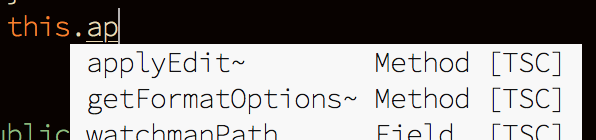
Note: If a completion item's snippet format is set only when the item is resolved, its label will not show ~. This is a Vim limitation.
A snippet expands only when you confirm the completion (<C-y> by default), so you can choose whether to expand it.
To make <cr> confirm completion, use this insert-mode mapping:
| 1 | inoremap <silent><expr> <cr> pumvisible() ? coc#pum#select_confirm() : |
| 2 | \"\<C-g>u\<CR>\<c-r>=coc#on_enter()\<CR>" |
coc#pum#select_confirm()selects the first completion item when necessary and sends<C-y>to Vim to confirm the completion.\<C-g>ubreaks the undo chain at the current position.coc#on_enter()notifies coc.nvim that you have pressed<enter>, so it can format your code on<enter>.
Note: Some plugins overwrite <CR> mappings, which can prevent your custom mapping from working. Check your <CR> mapping with :verbose imap <CR>.
A snippet session is cancelled under the following conditions:
InsertEnteris triggered outside a snippet.- The content changes at the final placeholder.
- The content changes after the snippet.
- The content changes inside the snippet but outside a placeholder.
You can nest snippets in an active snippet session, just like in VS Code and UltiSnips. An UltiSnips snippet can be nested inside a VS Code snippet and vice versa!
If you don't want to expand a snippet on completion, use <C-n> to insert the extracted text without confirming the completion, or check your language server's options to disable snippet completion items.
Configure the snippet workflow
The default keymaps for moving forward and backward between snippet placeholders are <C-j> and <C-k>. coc.nvim adds these buffer-local mappings when a snippet session starts.
Use the global variables g:coc_snippet_next and g:coc_snippet_prev to change these keymaps.
To make snippet completion work just like in VS Code, install coc-snippets, then add this mapping for <tab> to your .vimrc (or init.vim for Neovim):
| 1 | inoremap <silent><expr> <TAB> |
| 2 | \ pumvisible() ? coc#pum#select_confirm() : |
| 3 | \ coc#expandableOrJumpable() ? "\<C-r>=coc#rpc#request('doKeymap', ['snippets-expand-jump',''])\<CR>" : |
| 4 | \ CheckBackSpace() ? "\<TAB>" : |
| 5 | \ coc#refresh() |
| 6 | |
| 7 | function! CheckBackSpace() abort |
| 8 | let col = col('.') - 1 |
| 9 | return !col || getline('.')[col - 1] =~# '\s' |
| 10 | endfunction |
| 11 | |
| 12 | let g:coc_snippet_next = '<tab>' |
Related settings:
suggest.snippetIndicator: indicator text for snippets shown in the completion menu; defaults to~.suggest.preferCompleteThanJumpPlaceholder: enable this when you want to use the same key to confirm completion and jump to placeholders; defaults tofalse.snippet.statusText: text shown instatuslinewhile a snippet session is active.snippet.highlight: whentrue, use theCocSnippetVisualhighlight group to highlight placeholders with the same index as the current one.
Using VS Code snippets from extensions
To load VS Code snippets, you need to install the coc-snippets extension.
Then install a VS Code snippets extension from GitHub:
| 1 | :CocInstall https://github.com/andys8/vscode-jest-snippets |
Open a file whose filetype matches the snippets (for example, foo.js with the filetype javascript) and type part of a snippet's prefix.
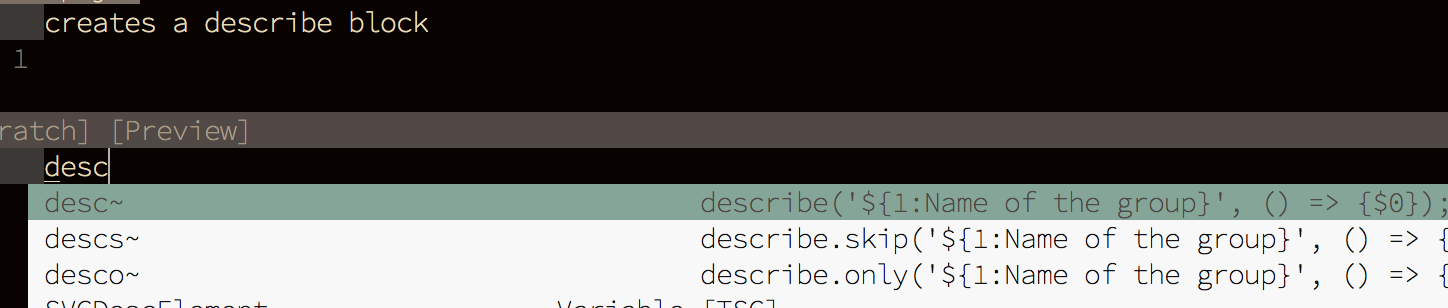
Tip: VS Code snippets extensions can also be installed using plugin managers.